How to Use TweakMods
Follow these steps to install and set up TweakMods
Before You Start
Close all games and applications before running TweakMods. We recommend creating a system snapshot before applying any tweaks so you can easily revert changes if needed.
Download & Run the Installer
Get the TweakMods installer and run it
Download the official TweakMods installer from our website. Once downloaded, run the installer to begin the setup process.
Download InstallerAccept the License Agreement
Read and accept the EULA to continue
Read through the End User License Agreement (EULA). Select "I accept the agreement" and click Next to proceed with the installation.
Review Installation Information
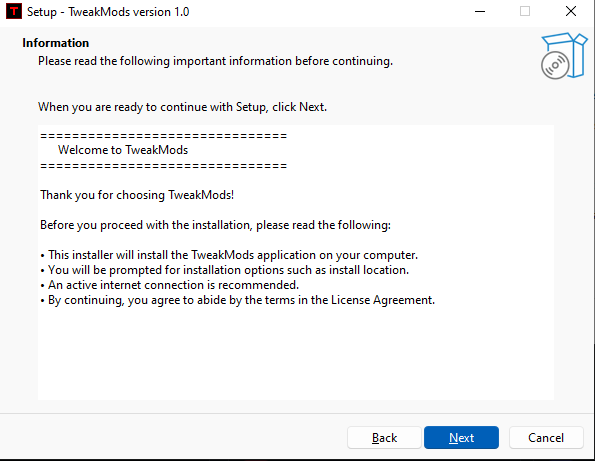
Read the important information before continuing
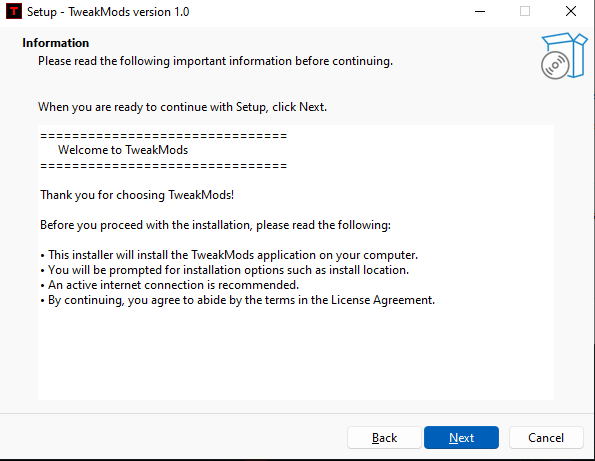
The installer will display important information about what TweakMods will install. An active internet connection is recommended. Click Next to continue.
Select Additional Tasks
Choose optional installation options
Select any additional tasks you want the installer to perform. We recommend keeping "Create a desktop shortcut" checked for easy access to TweakMods. Click Next to continue.

Ready to Install
Review your settings and begin installation
Review the summary of your installation settings. If everything looks correct, click Install to begin installing TweakMods on your computer. You can click Back to change any settings.

Installation Progress
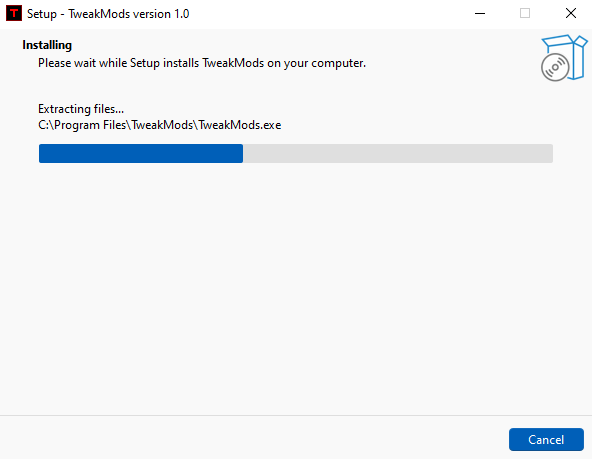
Wait for the installation to complete
The installer will now extract and install TweakMods to your computer. This may take a moment. Please wait for the progress bar to complete.
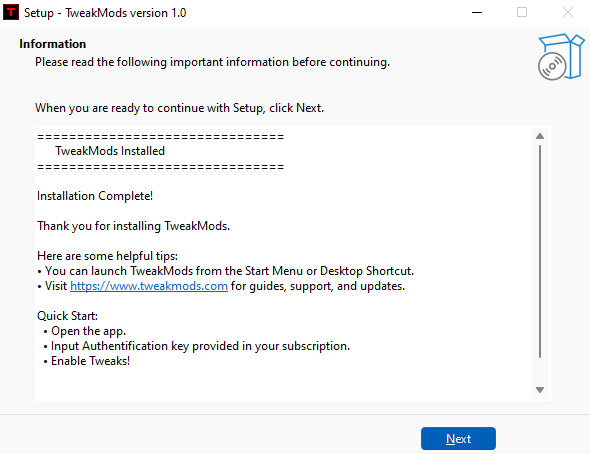
Installation Complete
Review helpful tips and quick start guide
You'll see helpful information including how to launch TweakMods and a Quick Start guide. Remember to enter your Authentication Key and enable your tweaks. Click Next to continue.
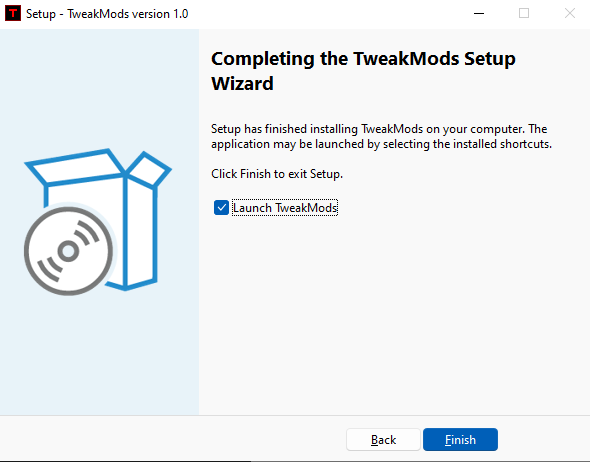
Finish Setup
Complete installation and launch TweakMods
Keep "Launch TweakMods" checked to open the application immediately after setup. Click Finish to exit the setup wizard and start using TweakMods!
Keep TweakMods Running
The app must stay running to keep tweaks active
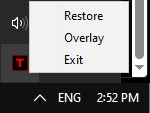
When you close TweakMods, it minimizes to your system tray instead of closing completely. The app must stay running in the background to keep your tweaks active.
You can right-click the TweakMods icon in your system tray to Restore the window, toggle the Overlay, or Exit the application.